

Hi All,
just wanted to say thank you to all that left a comment. It is truly appreciated and I am glad to share these with you.
Now I started to just answer this comment, but thought ....Uhmmm, others may want to know too. So....
jjred40 said...
thanks for sharing your awesome borders - how did you do these. I played around after watching Rob's video but didn't come up with anything this cute. How did you get the words inside the border? Thanks for sharing.
Here was going to be my response but sharing in case others were wondering also:
To get the words inside the border: You just type in the words in the add text group box and then place it on your mat. Then move/drag the word(s) "inside" of the border (rectangle) where you want them to be. Then you select all of the "rectangle/with words" and then just click on "join".....they are now in the border like the one in my Happy Birthday border.
PS.....I used the stencil font for this one. Remember when placing letters inside, think of how they will cut out. For instance an "a" the inside will be cut out so that you just have the edge layer....so you would have to somehow keep that inside to glue in place. The stencil font works great for these though.
As far as the other images. Just add them to your mat then place them along the border they way you want them placed. Make sure a little of the bottom edge of the image is touching the top (or bottom if you have the image descending) and once you have them overlapping "just a little" then select all of the border/images in one selection box, then do a weld. This makes it all one piece.....PS....you do not want to add any words until you have finished the weld....so that you can do a "join" with the letters. If you add the letters first "inside" of the border and click on weld they will disappear and be welded into the border.
Hope this helps with some questions about how to make these borders. The possibilities are whatever images you choose to work with....just think of a "theme" and go for it!!!
Wednesday, March 31, 2010

Monday, March 29, 2010
More Borders
NOTE:.....When you download these files, I have the images locked. On the Layers Property box click on the global lock at the bottom to unlock all images to move them around on the mat for cutting. **You will have to move the ones that are placed on the edge of the mat to move them from the grey/shaded border around the mat. Please leave me a comment if there are any problems so that I can help. Thanks, Sandy
And here are few more....I am having so much fun creating these.
 Click HERE for the .mtc file
Borders
I have been playing around creating borders that can be used for any papercrafting project.
Over at the MTC-Hints Yahoo Group (which I am a member of) this weeks challenge is to create a border(s). So here are a few I have put together. I am having fun with these.
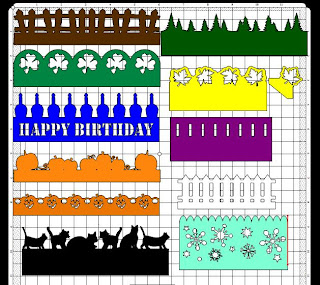
If you would like to have this .mtc file, please click HERE.
The name of each border is listed in the Layers Property Box. I hope you enjoy them and find them useful.
I will be making more to post, check back again.
Over at the MTC-Hints Yahoo Group (which I am a member of) this weeks challenge is to create a border(s). So here are a few I have put together. I am having fun with these.

If you would like to have this .mtc file, please click HERE.
The name of each border is listed in the Layers Property Box. I hope you enjoy them and find them useful.
I will be making more to post, check back again.
Sunday, March 28, 2010
Videos to Share
Okay so I have had a Flip camcorder for awhile now and have played around with family videos. I am trying my "hand" at using it to do some tutorials. These are a few that I am starting with. Still working on the quality of them so please excuse if they are not at all "professional"....which they are only meant to be informative. So hopefully they will help you in learning and/or working in the Make The Cut software.
I will be doing quite a few of these "Short Take" videos focusing on "one" feature for each video. I work a 40 hour week so I may not get more updated until the weekends....so just remember to check back to see what other features I will be introducing.
Thanks for stopping by and HAVE A GREAT DAY!!!
I will be doing quite a few of these "Short Take" videos focusing on "one" feature for each video. I work a 40 hour week so I may not get more updated until the weekends....so just remember to check back to see what other features I will be introducing.
Thanks for stopping by and HAVE A GREAT DAY!!!
Video Tutorial - Layer, Split and Break Features
And here is another video showing the differences of the Layer, Split and Break features used in Make the Cut as well as when to use them. Hope you find them helpful.
Video Tutorial - The Mirror and Flip Features
Here is another video that shows how to use the Mirror and/or the Flip features in Make the Cut. Hope you find it helpful.
Video Tutorial - The Selection Properties Box
Hi Everyone, here is another video I did showing how to use the Selection Properties Box. Hope you find it helpful.
Saturday, March 27, 2010
Video Tutorial - Customize Your Workspace in MTC
Hi everyone. I have attempted my first tutorial video. This video shows how to move things around and customize your workspace in Make The Cut.
Hope you enjoy it.
Hope you enjoy it.
Tuesday, March 23, 2010
Written Tutorial-How to Make A Shapebook in Make The Cut!

I have written another tutorial for using with the Make the Cut software. This tutorial will show you how to make a shapebook like the one pictured above. For ease, I have only created a 6 page book with only using 5 elements. You can create these books with as many pages as you desire that will fit on your mat and with as many elements as you have pages. The pages sizes in this tutorial are used for this demonstration, your pages can also be adjusted to the width and height that you desire.
To download this tutorial click HERE!
If you would like the MTC image used in the book:
For the Picnic Basket click HERE!
For the Sub-sandwich click HERE!
For the Ant click HERE!
For the Watermelon click HERE!
NOTE:!!! After making this tutorial, I left one step out that you will need for using these images in this book, this may not be necessary for any other images used. For the pieces that are welded to the pages, after making your second copy and removing it, using the first copy, break the image and remove all of the pieces except the background piece. This is the piece you will want to "weld" to the book. For some reason with these images, when I tried to weld the pieces the parts that were on the page welded, the parts off of the page did not weld.
Hope this tutorial helps you in creating these books. If you find that I need to elaborate more on a specific part of this tutorial or you are having difficulty with the tutorial, please leave me a comment so that I can help.
Sunday, March 21, 2010

Subscribe to:
Posts (Atom)